
What you’ll learn
Create your FieldNovi login and workspace, then activate the account using the email sent to you.
- Register
- Check email
- Activate
- Sign in
Before you begin
Use an email address you can access. If you are joining a team, register with the same email address that received the team invitation.
STEP 1 OF 4
Start your registration
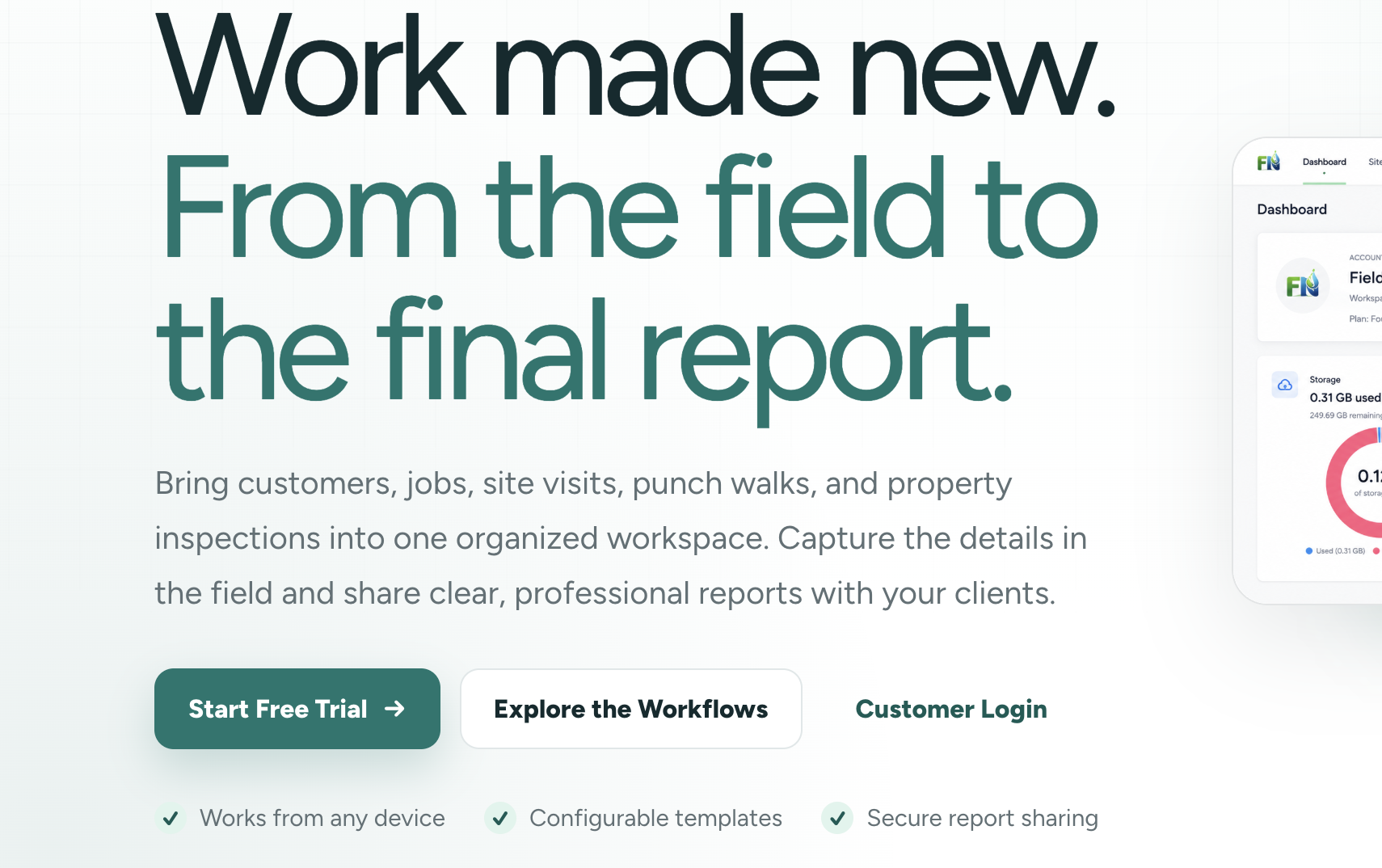
Visit fieldnovi.com and select Start Free Trial, or go directly to the registration page.
STEP 2 OF 4
Complete the registration form
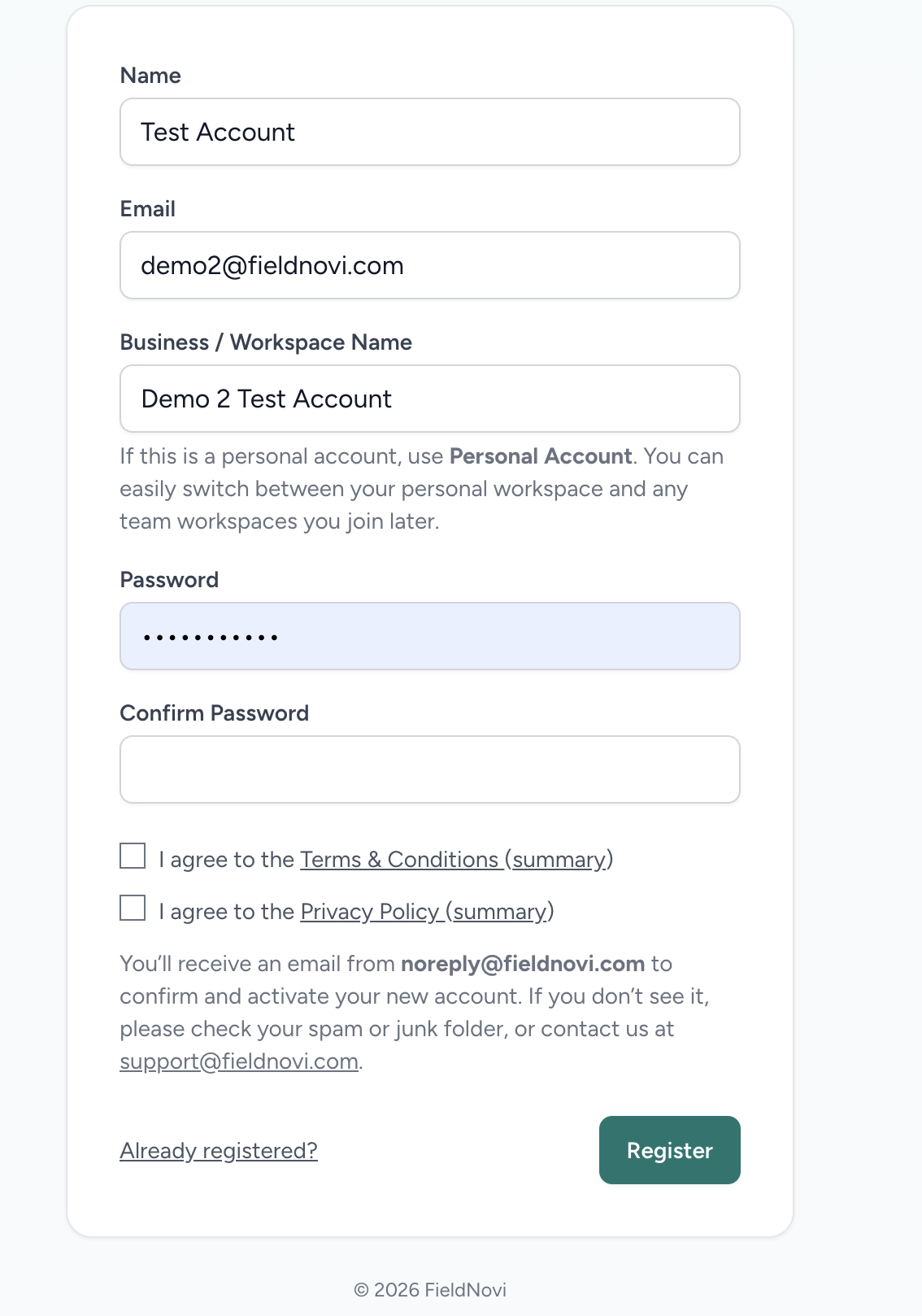
Enter your Name, Email, and Business / Workspace Name. For a personal workspace, you can use “Personal Account.”
Choose a password and enter it again in Confirm Password. Review the Terms & Conditions and Privacy Policy, select the agreement checkboxes, and select Register.
STEP 3 OF 4
Open the activation email
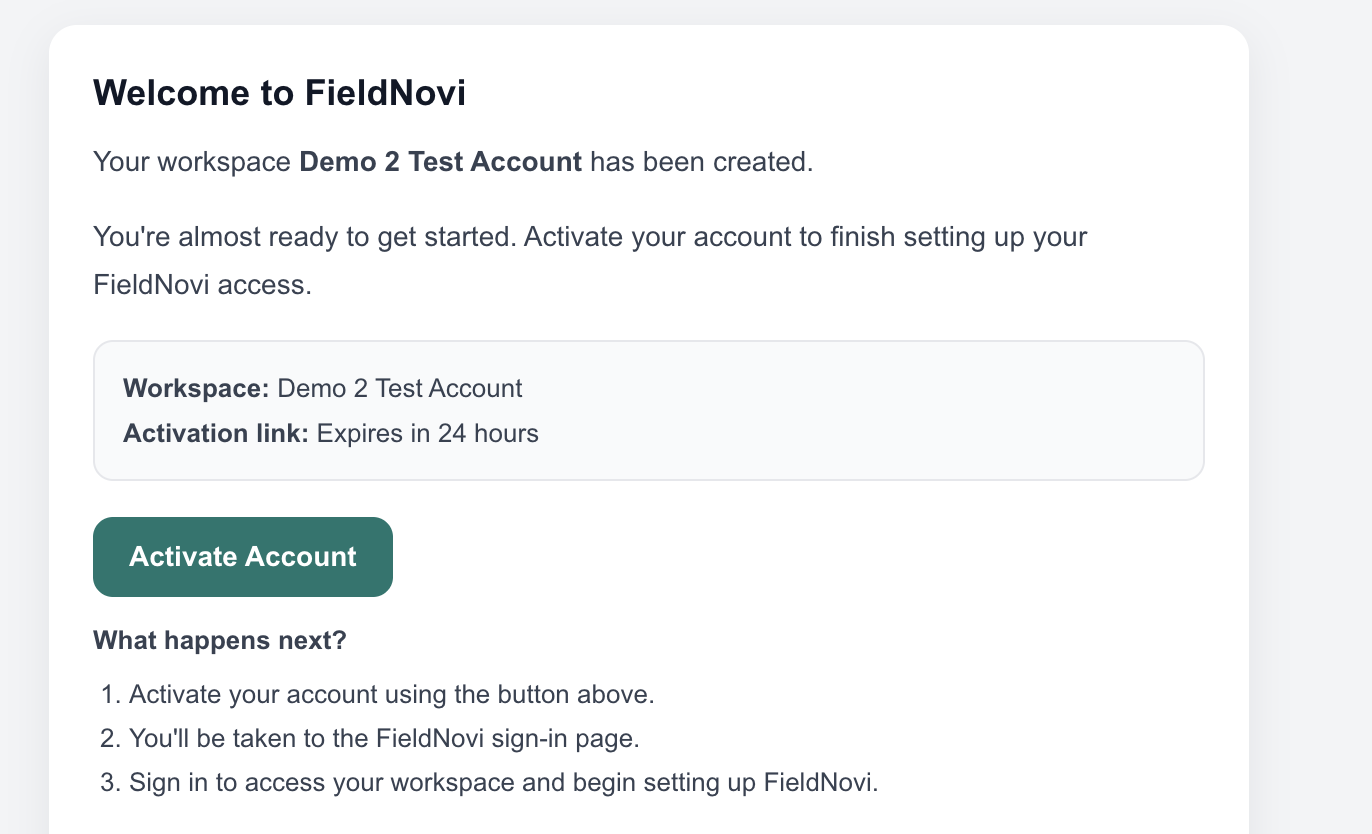
Look for the FieldNovi welcome email from noreply@fieldnovi.com. Open it and select Activate Account.
The activation link expires after 24 hours. If the email is missing, check your spam or junk folder.
STEP 4 OF 4
Sign in to your activated account
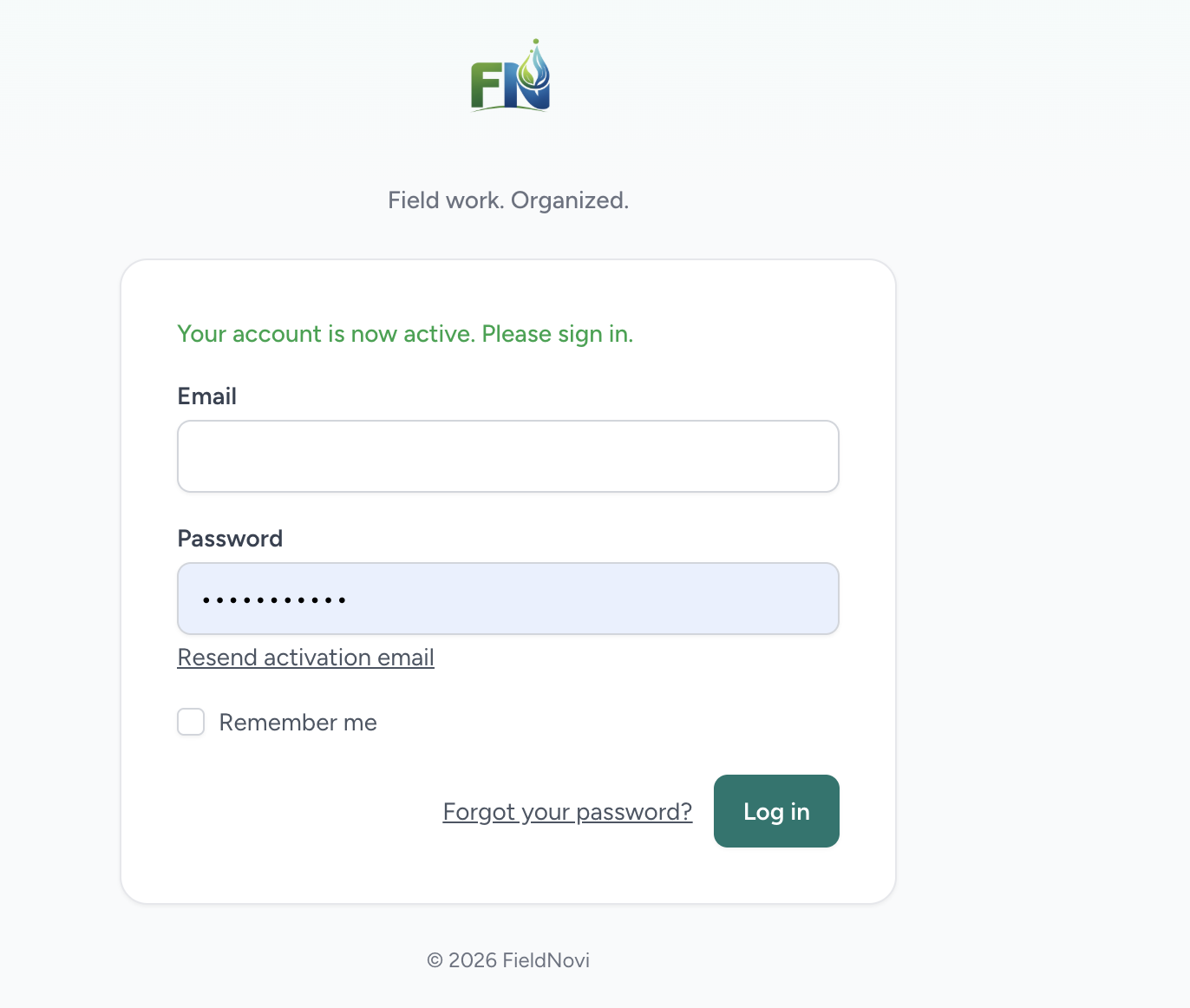
After activation, the sign-in page confirms that your account is active. Enter your email and password and select Log in.
If the activation link has expired, select Resend activation email on the customer login page and use the new email to activate the account.
GOOD HABITS
Best practices
- Double-check your email address before registering.
- Keep your activation email until you have successfully signed in.
- For a team invitation, use the invited email address throughout registration and acceptance.
QUICK ANSWERS
Common questions
I did not receive the activation email. What should I do?
Check spam or junk for an email from noreply@fieldnovi.com. Use Resend activation email on the login page. If it still does not arrive, email support@fieldnovi.com.
My activation link is more than 24 hours old. Can I still activate?
Request a new activation email from the customer login page, then activate using the new message.
Do I need a paid personal subscription to join a team?
No. You need an activated FieldNovi account with the invited email address. Follow Invite and join a team to accept the invitation.
FIELDNOVI SUPPORT
Still need help?
Email support@fieldnovi.com for questions or anything that is not working as expected.
Include these details
- Your name and organization.
- The workspace and any relevant record names.
- What you were trying to do and what happened instead.
- Any error message and a screenshot, when possible.
- The approximate date and time the issue occurred.
Do not include passwords or payment card details.