
Download your data and understand the recovery period
Use Workspace & Data to download eligible business records and original files, or schedule deletion of a workspace you own. Scheduling deletion locks normal workspace access immediately and starts a 30-day recovery period.
- Choose workspace
- Export records
- Download originals
- Schedule deletion
- 30-day recovery
Before you begin
Confirm which workspace you intend to manage and have your current FieldNovi password ready. The recovery list shows workspaces you own. Download and check the records and original files you need before scheduling deletion.
Deleting or restoring a workspace does not cancel its subscription, stop recurring charges, restart billing, or issue a refund. Manage the subscription separately in Profile → Billing.
- Records ZIP
- Selected business records in CSV and JSONL format, with a manifest describing included data and known exclusions. Photos and documents are downloaded separately.
- Original files
- Eligible original uploads that you browse and download individually. They are not combined into one large ZIP.
- Recovery period
- The 30-day period after deletion is scheduled. You can restore the workspace or download eligible data before the deadline.
STEP 1 OF 6
Open the workspace data and recovery controls
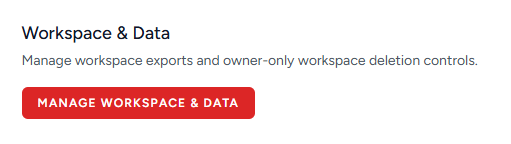
Open your name menu and select Profile. In Workspace & Data, select Manage Workspace & Data.
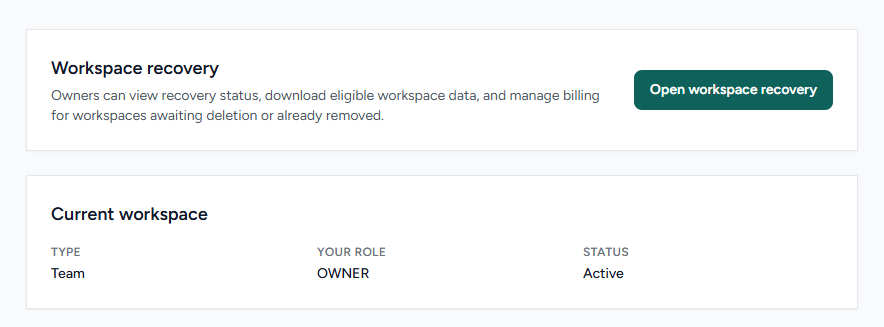
In the Workspace recovery section, select Open workspace recovery.
STEP 2 OF 6
Select the workspace and view its recovery details
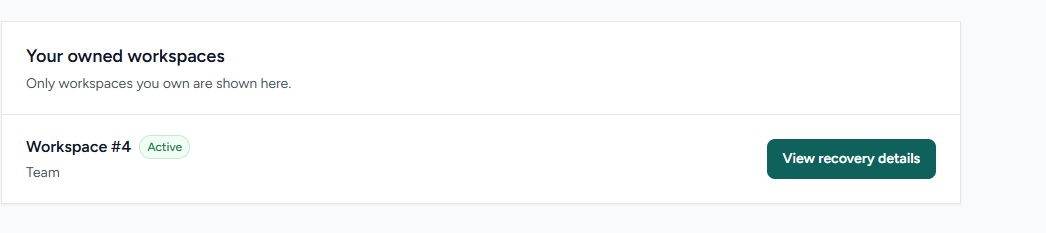
Under Your owned workspaces, locate the workspace you intend to manage. Check its name or identifier, type, and status, then select View recovery details.
Only workspaces you own appear in this list. Confirm the workspace again before downloading data or scheduling deletion.
STEP 3 OF 6
Download and inspect the records ZIP
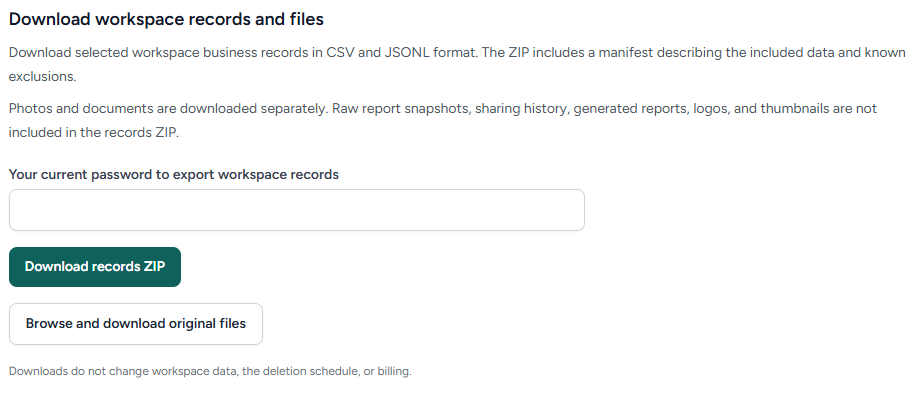
Find Download workspace records and files. Enter your current FieldNovi password in the records-export field, then select Download records ZIP.
The ZIP contains selected business records in CSV and JSONL format, plus a manifest describing what is included and any known exclusions. Open the ZIP and review that manifest after the download finishes.
Photos and documents are downloaded separately. Raw report snapshots, sharing history, generated reports, logos, and thumbnails are not included in the records ZIP.
Helpful tip Open the downloaded records and check that the information you need is present and readable. Downloading does not change the deletion schedule or billing.
STEP 4 OF 6
Browse and download the original uploads
Select Browse and download original files. Use the Media library, Legacy site visits, or Legacy punch items tab to find the uploads you need.
Select Download file beside each file. Original files download individually, rather than as one large ZIP. The Media library excludes deleted files; the legacy tabs show original files whose rows are not linked to the media library, so a stored file may appear more than once.
Logos, thumbnails, and generated PDF reports are not included. Open the downloaded files to verify them. File availability is checked when you request a download.
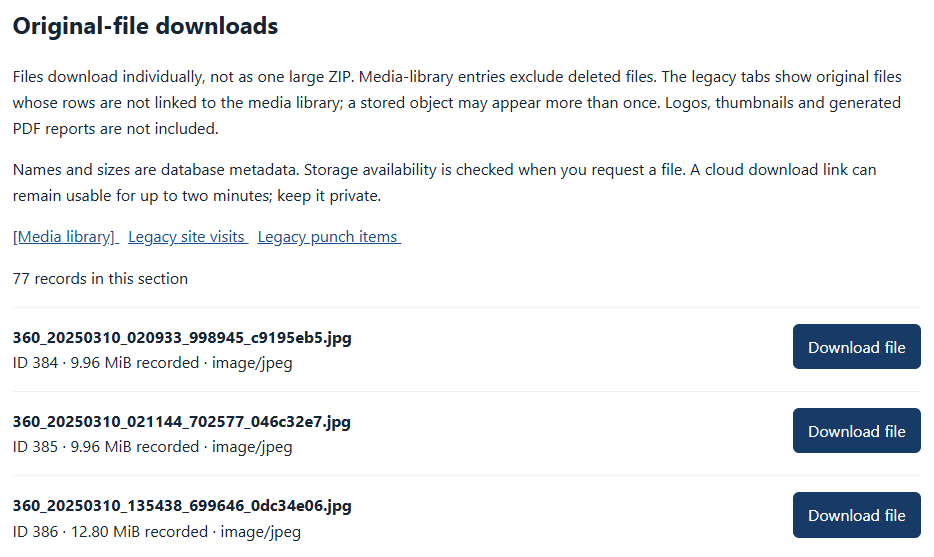
Helpful tip Keep download links private. A cloud download link can remain usable for up to two minutes.
STEP 5 OF 6
Confirm the workspace deletion schedule
If you also want to stop recurring charges, manage the subscription separately through Profile → Billing. See Manage subscription and billing. Deleting or restoring a workspace does not change billing or issue a refund.
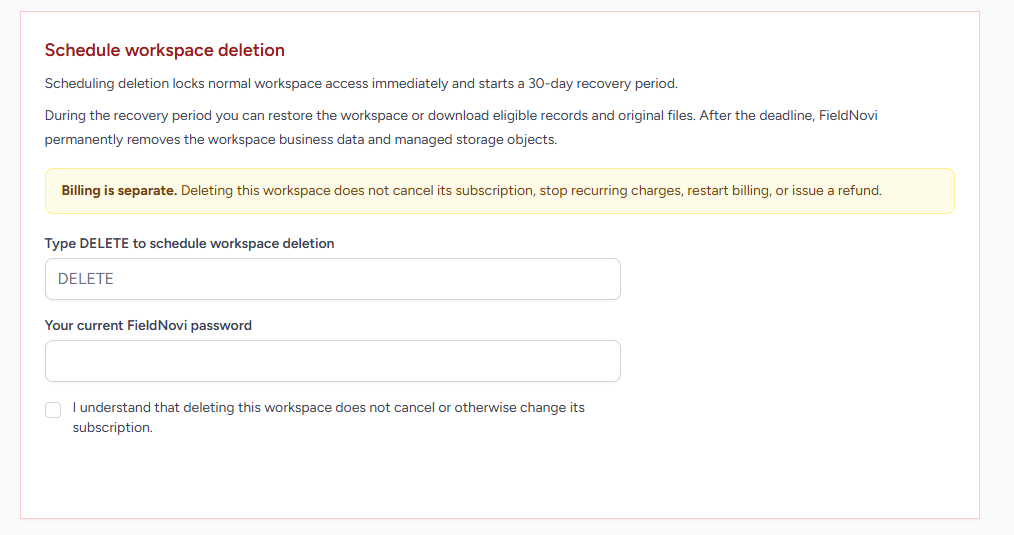
After verifying your downloads, read the Schedule workspace deletion notice. Type DELETE, enter your current FieldNovi password, and select the checkbox acknowledging that deletion does not cancel or otherwise change the subscription. Submit the deletion request using the page’s confirmation control.
Scheduling deletion locks normal workspace access immediately and starts the 30-day recovery period. Check the recovery details for the deletion deadline.
STEP 6 OF 6
Restore or download before the deadline
During the recovery period, return to Profile → Workspace & Data → Manage Workspace & Data → Open workspace recovery and open the workspace’s recovery details.
You can use the available recovery controls to restore the workspace or download eligible records and original files before the deadline. Restoring a workspace does not restart billing or otherwise change its subscription.
After the deadline, FieldNovi permanently removes the workspace business data and managed storage objects. Complete your downloads or restoration before that deadline.
Helpful tip If a download fails or you are unsure what will be removed, contact support@fieldnovi.com before the recovery deadline.
GOOD HABITS
Best practices
- Check the workspace name or identifier and its status before making a selection.
- Download both the records ZIP and the original files you need, then open them to verify the results.
- Review the export manifest and file exclusions; the records ZIP is not a complete archive of every item shown in FieldNovi.
- Manage subscription cancellation separately from deletion and recovery.
- Use the recovery deadline shown for the workspace. Downloads do not extend the deletion schedule.
QUICK ANSWERS
Common questions
Does deleting or restoring a workspace cancel my subscription?
No. Neither action cancels a subscription, stops recurring charges, restarts billing, or issues a refund. Manage the subscription separately through Profile → Billing. See Manage subscription and billing.
Is the workspace permanently deleted as soon as I confirm?
No. Scheduling deletion locks normal workspace access immediately and starts a 30-day recovery period. During that period you can restore the workspace or download eligible records and original files. Permanent removal occurs after the deadline.
Does the records ZIP include my photos and documents?
No. The records ZIP contains selected business records in CSV and JSONL format and a manifest. Use Browse and download original files for eligible original uploads. Raw report snapshots, sharing history, generated reports, logos, and thumbnails are excluded from the records ZIP.
Can I download all original files in one ZIP?
The original-file page downloads files individually. Use the Media library and legacy tabs and select Download file for each upload you need. Logos, thumbnails, and generated PDF reports are not included.
Does downloading my data extend the recovery period?
No. Downloads do not change the deletion schedule, workspace data, or billing. Complete your downloads before the recovery deadline.
Why is a workspace missing from the recovery list?
The list shows only workspaces you own. Confirm you signed in to the owner account. Contact the workspace owner or Support if you need help.
Does this delete my login or every workspace I belong to?
This procedure schedules deletion of the selected workspace. It does not describe deletion of your FieldNovi login or all other workspaces. Contact Support if you need help with a different account-removal request.
Can I restore the workspace after the deadline?
Use the recovery controls before the deadline. After the deadline, FieldNovi permanently removes the workspace business data and managed storage objects. Do not rely on being able to recover them afterward.
FIELDNOVI SUPPORT
Still need help?
Email support@fieldnovi.com for questions or anything that is not working as expected.
Include these details
- Your name and organization.
- The workspace and any relevant record names.
- What you were trying to do and what happened instead.
- Any error message and a screenshot, when possible.
- The approximate date and time the issue occurred.
Do not include passwords or payment card details.