
What you’ll learn
Your Profile is where you manage personal account information such as your name and password.
- Account menu
- Profile
- Edit
- Save
Before you begin
Sign in to the account you want to update. Workspace business information is managed separately in workspace Settings.
STEP 1 OF 3
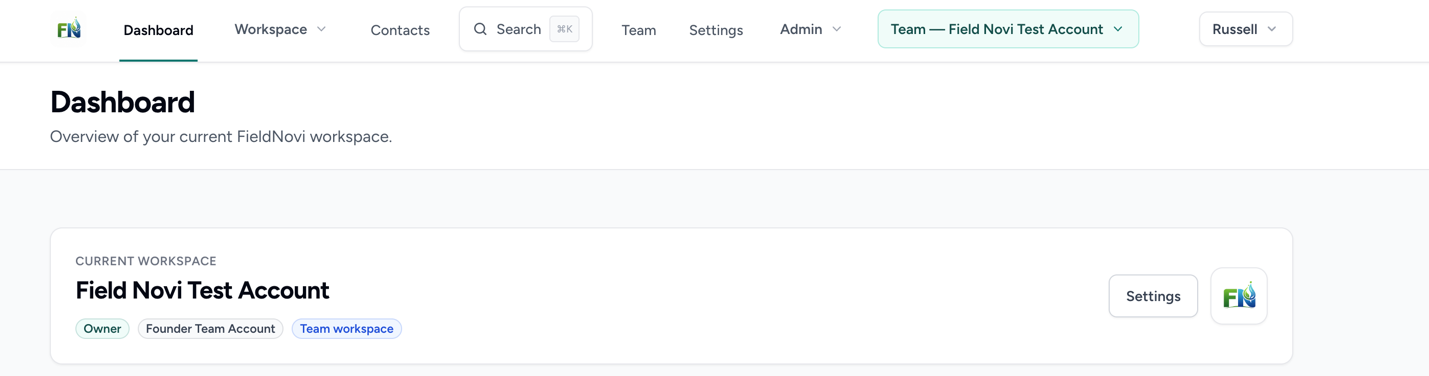
Open Profile from your name menu
Select your name in the upper-right corner of FieldNovi, then choose Profile.
STEP 2 OF 3
Edit your name or password
Find the relevant Profile section and enter the changes you want to make. When updating your password, complete the fields requested by the form.
STEP 3 OF 3
Save and check your update
Select Save in the section you changed. Check for a confirmation or validation message before leaving the page. If a field needs correction, update it and save again.
GOOD HABITS
Best practices
- Use a password you do not use for other services.
- Save each changed section before navigating away.
- Never include your password in a Support email or screenshot.
QUICK ANSWERS
Common questions
Where do I change the business name or report logo?
Use workspace Settings. See Dashboard and workspace settings. Your Profile name and workspace business information are separate.
Where is subscription management?
Billing is also reached from Profile. Select the correct workspace first, then follow Manage subscription and billing.
I cannot sign in to update my password. What should I do?
Use Forgot your password? on the customer login page. Contact support@fieldnovi.com if you need further help, and do not send your password.
FIELDNOVI SUPPORT
Still need help?
Email support@fieldnovi.com for questions or anything that is not working as expected.
Include these details
- Your name and organization.
- The workspace and any relevant record names.
- What you were trying to do and what happened instead.
- Any error message and a screenshot, when possible.
- The approximate date and time the issue occurred.
Do not include passwords or payment card details.