
Remember a trusted browser and manage its access
FieldNovi can remember a trusted browser so it can skip the emailed login code for 30 days from the date it was saved. You can review and remove saved browsers in your Profile.
- Sign in
- Verify email code
- Save this browser
- Manage saved devices
Before you begin
Use a personal or assigned device that you control and make sure you can access your FieldNovi email. Leave the remember options off on a shared or public computer.
Do not use Remember me or Remember this device for 30 days on a shared or public computer.
- Remember me
- The option on the login page for remembered sign-in between visits. It requires an unexpired saved browser; selecting it alone does not establish 2FA trust.
- Saved device
- A browser granted permission to skip the login code for 30 days. Cookies identify the saved browser, not the computer’s serial number.
- Active
- The browser is still trusted. This status does not mean the browser is currently signed in.
STEP 1 OF 4
Sign in on your own device
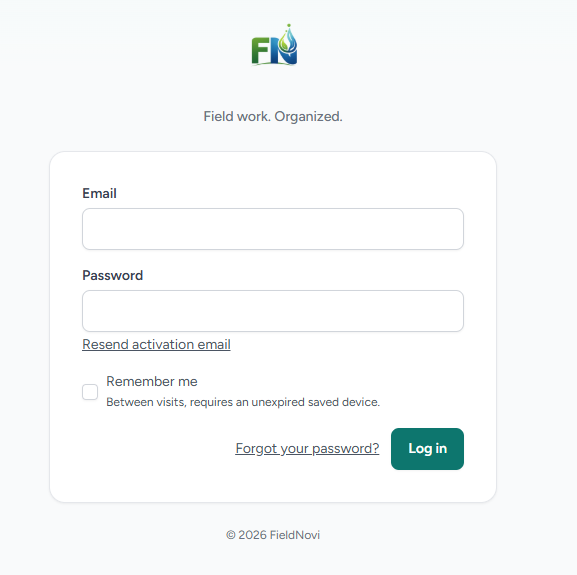
Open the FieldNovi login page and enter your email and password. On a device you control, select Remember me if you want remembered sign-in between visits, then select Log in.
The login page notes that remembered sign-in requires an unexpired saved device. If this browser is not yet trusted, complete the emailed-code verification in the next step.
STEP 2 OF 4
Enter the code and remember this device for 30 days
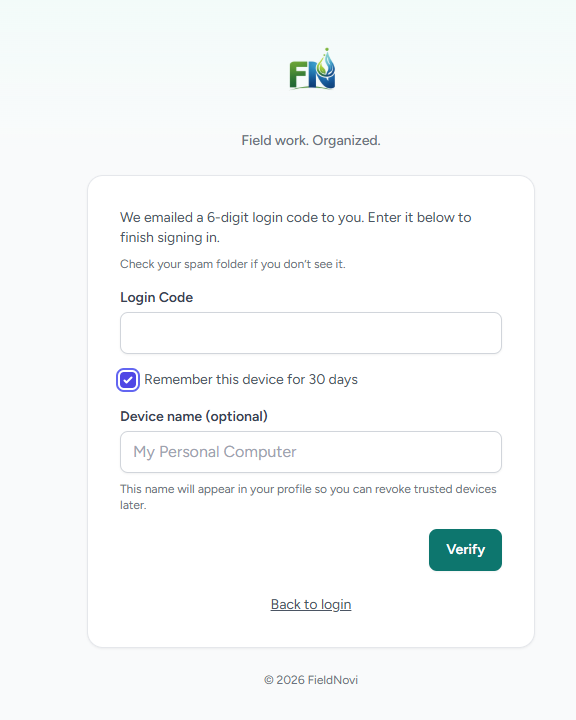
Find the 6-digit login code sent to your email. Check your spam folder if you do not see it, then enter the code in Login Code.
Select Remember this device for 30 days. You can enter a Device name, such as “Work Desktop” or “Personal Laptop,” to make the entry easier to recognize later. Select Verify to finish signing in.
The saved-browser permission lasts 30 days from the date saved. Signing in does not extend that expiration. After it expires, complete code verification again when prompted.
STEP 3 OF 4
Open Saved devices in your Profile
Open your name menu, select Profile, and find Saved devices.
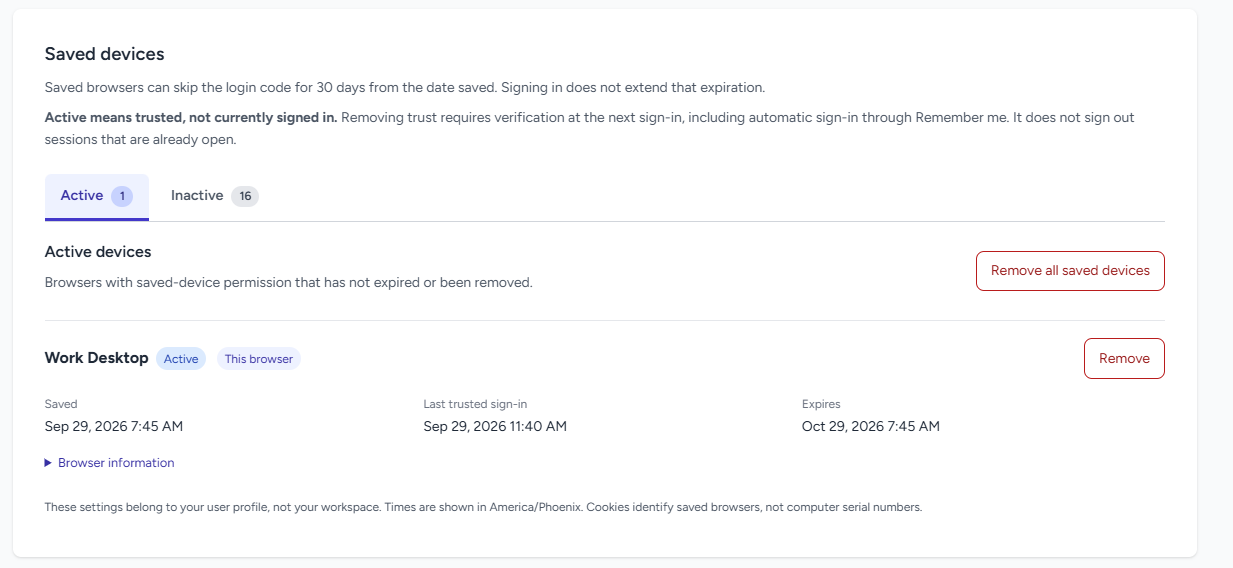
Use the Active tab to view browsers whose saved-device permission has not expired or been removed. Check the name, Saved date, Last trusted sign-in, and Expires date. The current browser is marked This browser.
Use Inactive to review entries that are no longer trusted, and expand Browser information when you need more detail. Active indicates trust, not a currently open sign-in session.
These settings belong to your personal Profile, rather than an individual workspace. The example screen displays times in America/Phoenix.
STEP 4 OF 4
Remove one saved device or all saved devices
Select Remove beside a browser to remove its saved permission. To remove trust from all saved browsers, select Remove all saved devices. Review and complete any confirmation shown.
Removing trust requires verification at the next sign-in, including automatic sign-in through Remember me. It does not sign out sessions that are already open.
If you suspect someone else has access to your account, remove saved-device permissions and contact support@fieldnovi.com for help. You can also update your password from your Profile.
Helpful tip Review saved devices when you replace a computer, stop using a browser, or no longer recognize an entry.
GOOD HABITS
Best practices
- Leave both remember options off on shared or public computers.
- Give each saved browser a name that makes it easy to identify.
- Check the Expires date; regular sign-ins do not restart the 30-day period.
- Remove entries you no longer use or do not recognize.
- Keep login codes and passwords private. Support does not need them in an email or screenshot.
QUICK ANSWERS
Common questions
Is Remember me the same as remembering this device for 30 days?
They are separate options. Remember me is on the login page for remembered sign-in between visits. Remember this device for 30 days is on the emailed-code verification page and saves browser trust. The login-page option requires an unexpired saved browser.
Does each sign-in restart the 30 days?
No. The period runs from the date the browser was saved. Signing in does not extend it. Check the Expires date in Profile → Saved devices.
Does Active mean someone is currently signed in?
No. Active means the browser’s saved-device permission has not expired or been removed. It is a trust status, not a list of live sessions.
Will Remove all saved devices sign out every open session?
No. It removes saved-browser trust and requires verification at the next sign-in, including automatic sign-in through Remember me. Sessions that are already open are not signed out by this control.
Is a saved device shared across all browsers on my computer?
The saved-device setting identifies a browser through cookies, not the computer’s serial number. A different browser or cleared browser cookies may require code verification again.
Are saved devices tied to the current workspace?
No. Saved-device settings belong to your personal Profile, so you manage them for your account rather than separately for each workspace.
Why am I being asked for a code again?
The saved permission may have expired or been removed, or the current browser may not have the saved cookie. Complete verification with the emailed code. Use the remember option again only on a device you control.
FIELDNOVI SUPPORT
Still need help?
Email support@fieldnovi.com for questions or anything that is not working as expected.
Include these details
- Your name and organization.
- The workspace and any relevant record names.
- What you were trying to do and what happened instead.
- Any error message and a screenshot, when possible.
- The approximate date and time the issue occurred.
Do not include passwords or payment card details.