
What you’ll learn
Use the Search control in the top navigation to find records in the workspace you are currently using.
- Check workspace
- Search
- Choose result
Before you begin
Confirm the selected workspace first. Search is limited to that workspace, so records from another personal or team workspace will not appear.
STEP 1 OF 3
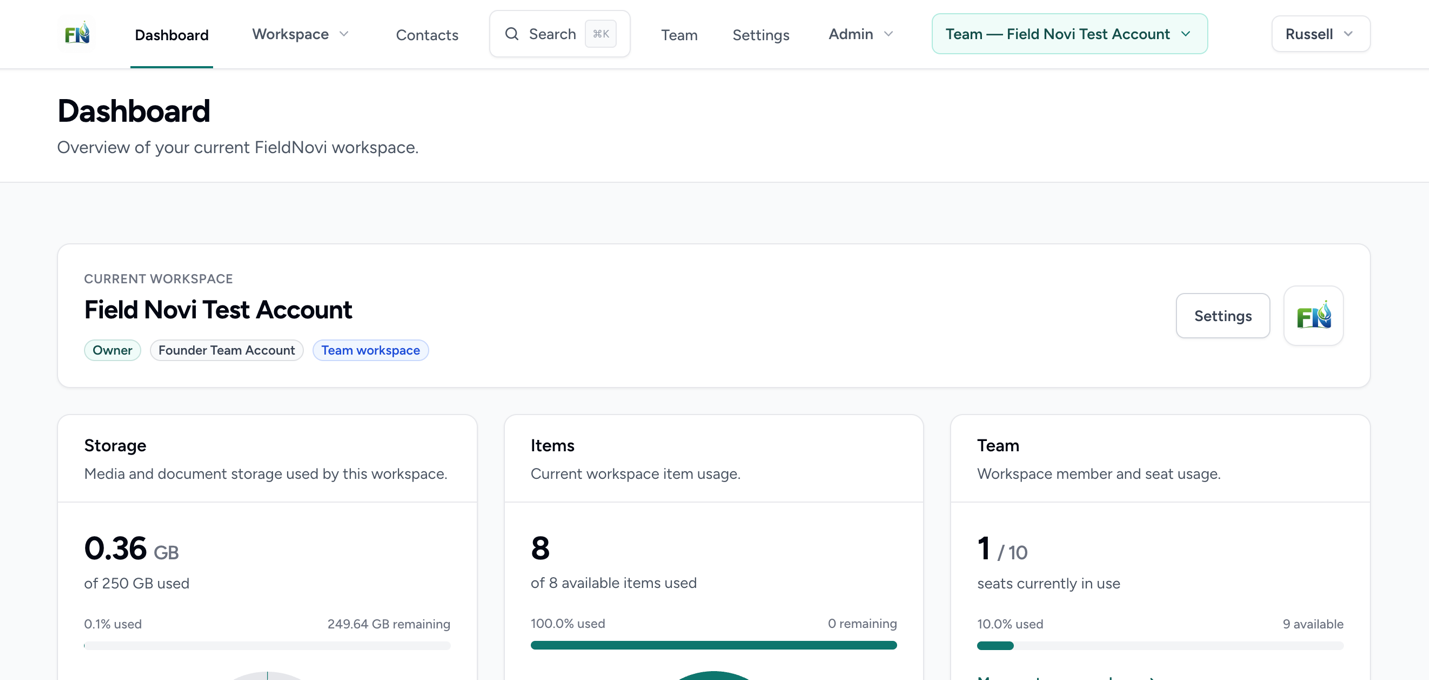
Open Search from the navigation
Select Search in the top navigation. You can also use the keyboard shortcut displayed beside it.
STEP 2 OF 3
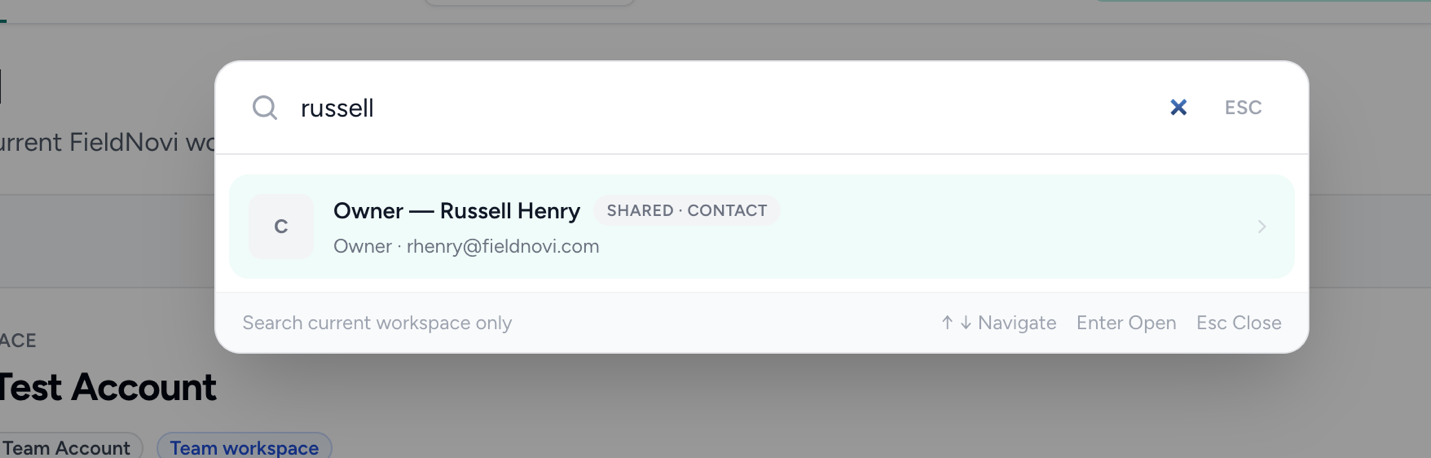
Search for the record you need
Type a customer, project, contact, or property name. Review the matching results and the record-type labels.
If you do not find the record, try a shorter or different part of its name and check that you selected the correct workspace.
STEP 3 OF 3
Choose a matching record
Select the result to open it. With a keyboard, use the up and down arrows to move between results, Enter to open a result, and Esc to close Search.
GOOD HABITS
Best practices
- Use a distinctive part of the record name.
- Check the record type when several results have similar names.
- Switch workspaces before searching for records held by another team.
QUICK ANSWERS
Common questions
Does Search include all of my workspaces?
No. Search covers the current workspace only. Use the workspace switcher to search a different workspace.
Why is a record missing from my results?
Check the selected workspace and try a shorter search term. If the record still does not appear, confirm its name and your access with the workspace owner.
Can I use Search with a keyboard?
Yes. Open it with the shortcut shown in the navigation, then use the arrow keys, Enter, and Esc as shown in the search window.
FIELDNOVI SUPPORT
Still need help?
Email support@fieldnovi.com for questions or anything that is not working as expected.
Include these details
- Your name and organization.
- The workspace and any relevant record names.
- What you were trying to do and what happened instead.
- Any error message and a screenshot, when possible.
- The approximate date and time the issue occurred.
Do not include passwords or payment card details.